Letterheads, signatures anywhere and company seals: how to set them up in April
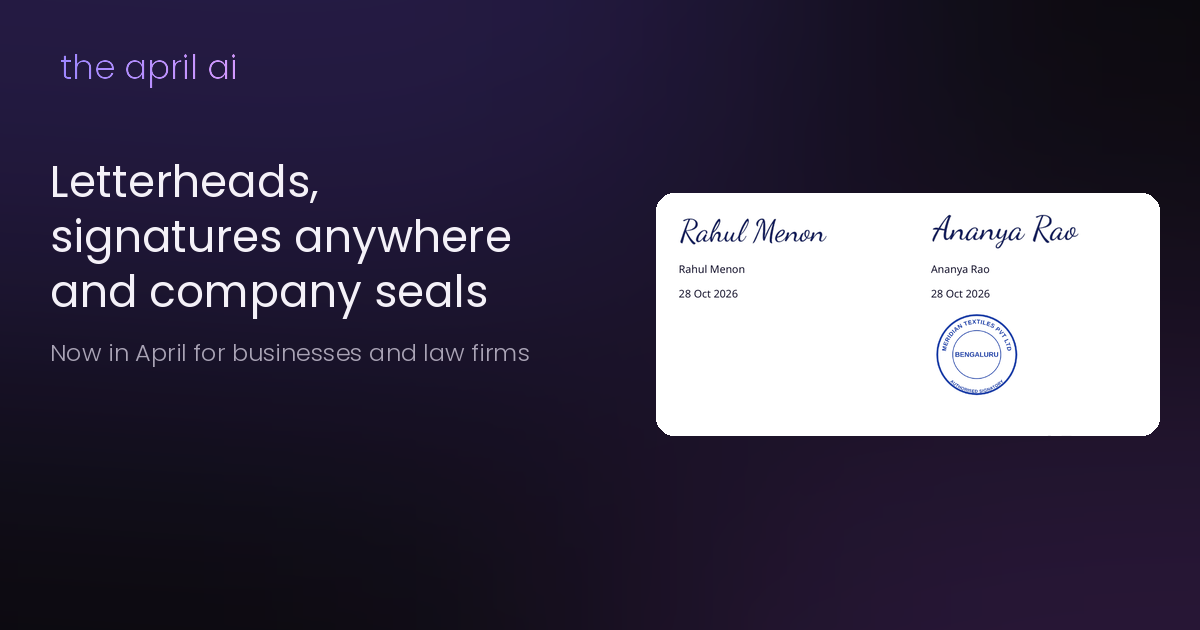
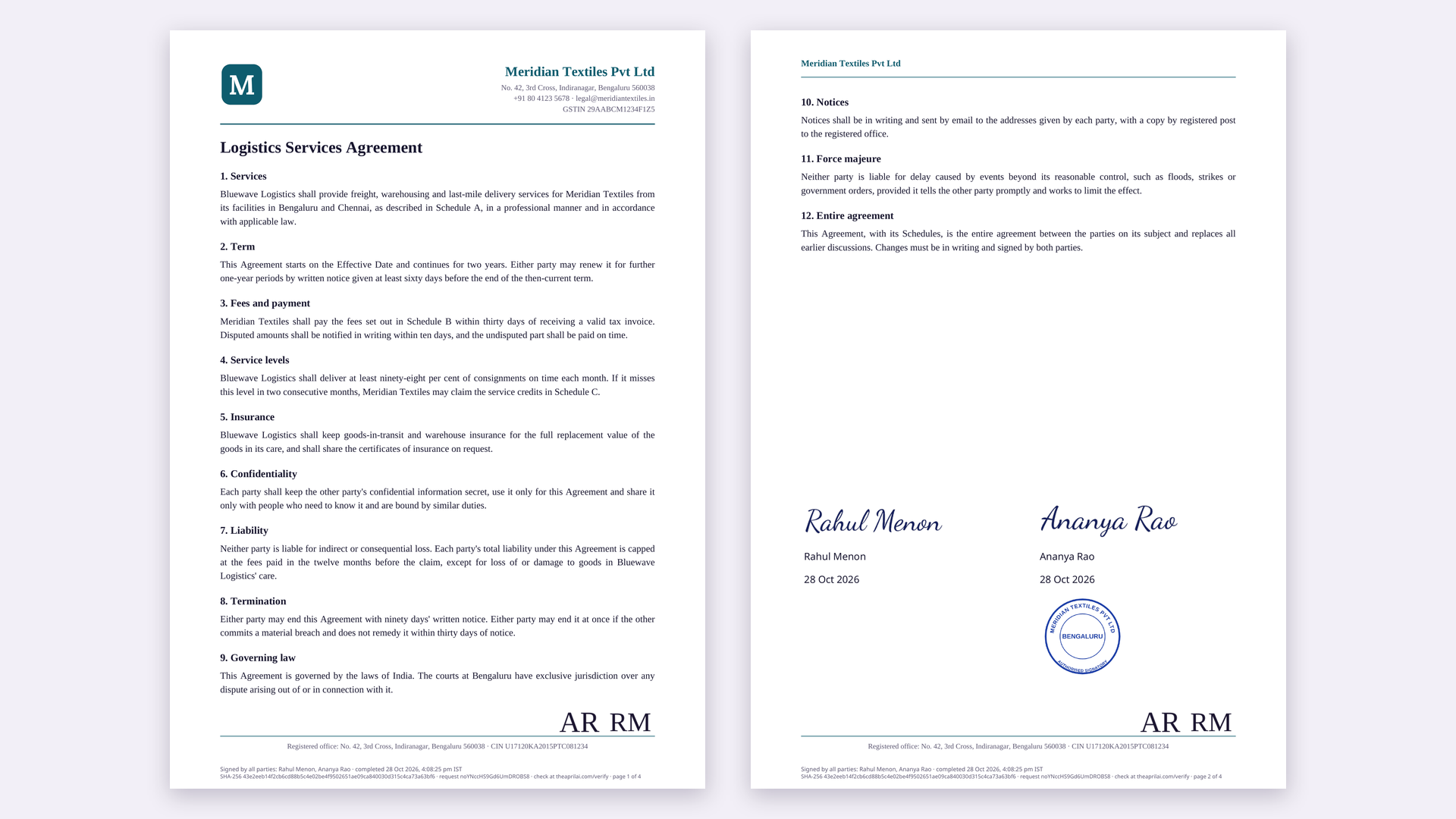
Quick answer: April now lets businesses and law firms send contracts on their own letterhead, place signatures, initials, seals and text boxes anywhere on the pages, and have each person sign just once. An owner or admin sets up the letterhead and the seal once, in Settings. Then, when you send a contract, choose Where I place them on the pages and drag each person's places onto the pages. The signed PDF comes back on your letterhead, with every signature and seal in place and an audit certificate at the end.
Until now, every contract signed in April ended with a standard signature page. That works, but most companies don't send agreements that way. They print on their letterhead, ask for initials on every page, sign under the last clause and stamp the company seal next to the signature. April now does all of that. This guide walks through each part.
What's new
• Your letterhead on every contract. Upload the letterhead you already use, as a PDF or a picture, or make one in April with your logo, name, address, phone, GSTIN and a footer line.
• Fonts and justified text. Choose from seven fonts, the text size, line spacing and margins. Text is justified by default, like a printed agreement.
• Signatures anywhere. Drag signature, initials, seal, name, date and text boxes onto any page, for each person who signs.
• Sign once. Each signer signs one time and ticks one box. April puts their signature and initials in every place marked for them.
• Company seals. Make a round, oval or rectangular seal in April, or upload a photo of your rubber stamp.
• Letterhead or plain paper, for each contract. One tick decides whether a contract goes out on your letterhead.
Before you start
• Who can set it up: the account's owners and admins. Other team members can use the styles and seals, but can't change them.
• Which accounts: letterheads, placed signatures and seals are for businesses and law firms. If a section says it isn't included in your plan, click See plans, or write to us and we'll help.
• What you need: your letterhead as a PDF or a PNG or JPEG picture (10 MB at most), or your logo if you'd rather make one in April. For the seal, a clear photo or scan of your stamp, or just the words you want on it.
• Where: the setup is easiest on a laptop or desktop. Signers can sign on any phone.
Step 1: Add your letterhead
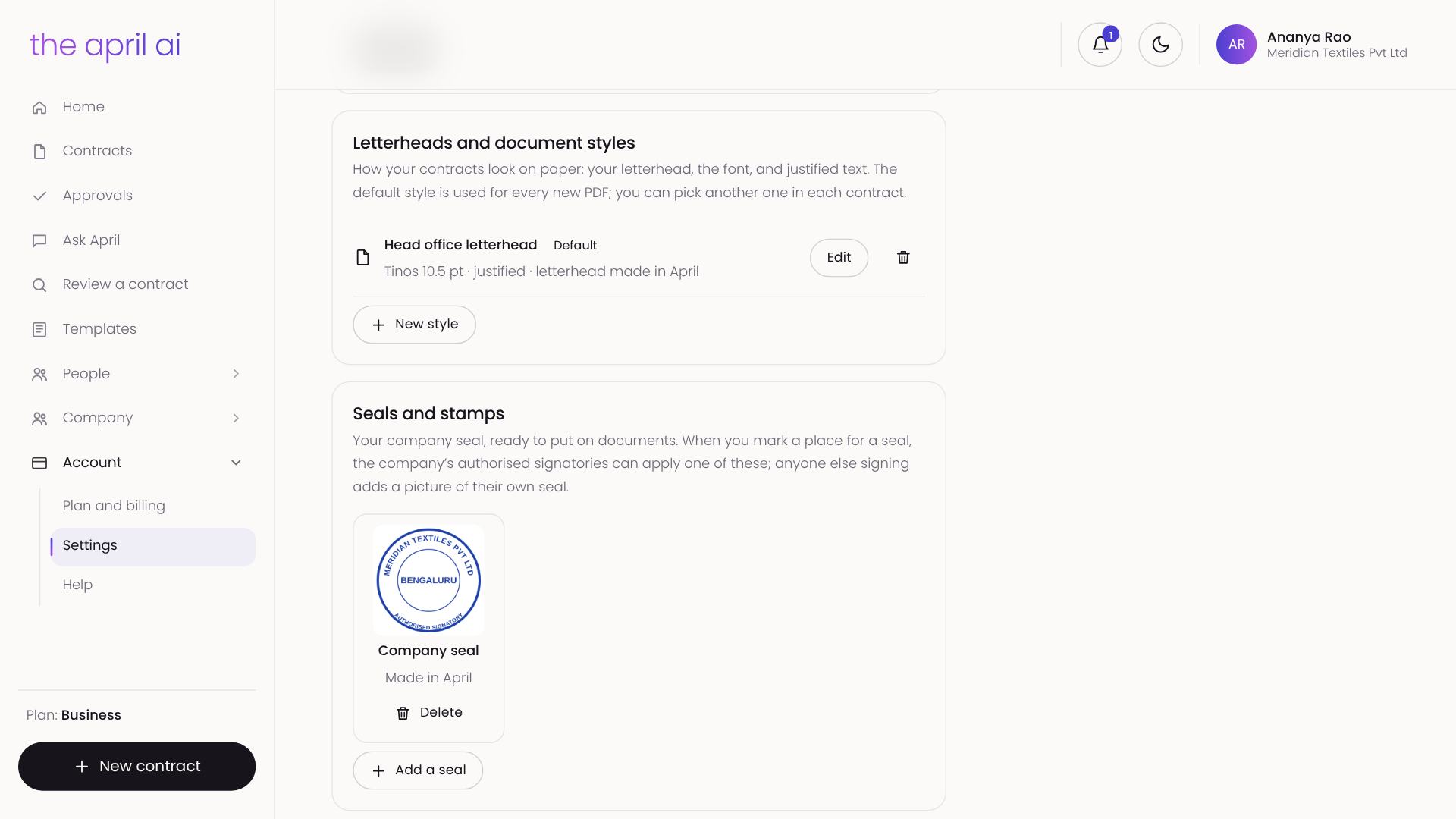
Open Settings and find Letterheads and document styles. A style is how your contracts look on paper: the letterhead, the font and the spacing. Click New style.
Choose the font and spacing
Give the style a name that only your team sees, for example "Head office letterhead". Then choose:
• Font: Noto Sans (April's standard font), Tinos (like Times New Roman), Arimo (like Arial), Carlito (like Calibri), Noto Serif (like Georgia), Lora (a classic book font) or Inter (a modern, very clear font).
• Size: from 9 pt to 13 pt.
• Line spacing: 1, 1.15 or 1.5.
• Alignment: justified (the default) or left-aligned.
• Margins: narrow, normal or wide.
You can also add space after paragraphs and print clause headings in bold.
Option A: Upload your own letterhead
Under Letterhead, choose Upload yours.
1. Next to First page, click Upload and pick your letterhead. Use a full A4 page: a PDF works best, and a PNG or JPEG picture works too.
2. Set Space at the top (mm) and Space at the bottom (mm). This is the clear space April leaves for your header and footer, so the contract text never runs over them. Measure from the edge of the page to just below your header, and from the bottom edge to just above your footer.
3. If your later pages use a lighter design, such as only a footer, upload it under Other pages (optional) and set its own top and bottom space. If you skip this, every page uses the first page's letterhead.
Tip: if you have your letterhead as a Word file, save it as a PDF with no text on the page except the header and footer.
Option B: Make a letterhead in April
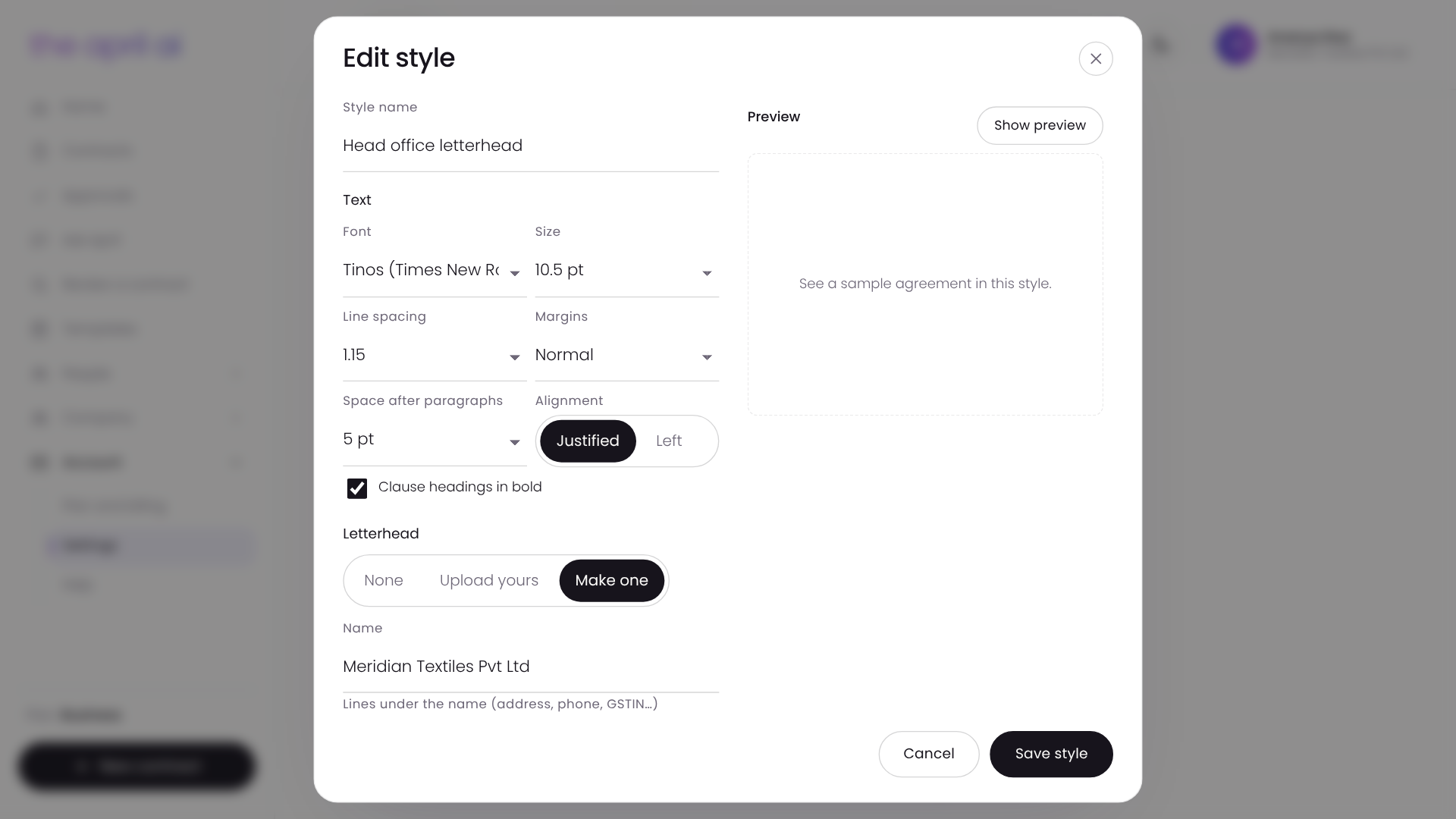
Choose Make one and fill in:
• Layout: the name and logo on the left, in the centre or on the right.
• Logo (optional): a PNG or JPEG.
• Name: your company or firm name.
• Lines under the name: up to four lines, such as the address, phone and email, and GSTIN or registration number.
• Footer line (optional): for example your registered office or website.
• Colour: the colour of the name and the line under the header.
Preview and save
Click Show preview to see a sample agreement in this style. Change anything you like, click Update preview, and when it looks right, click Save style.
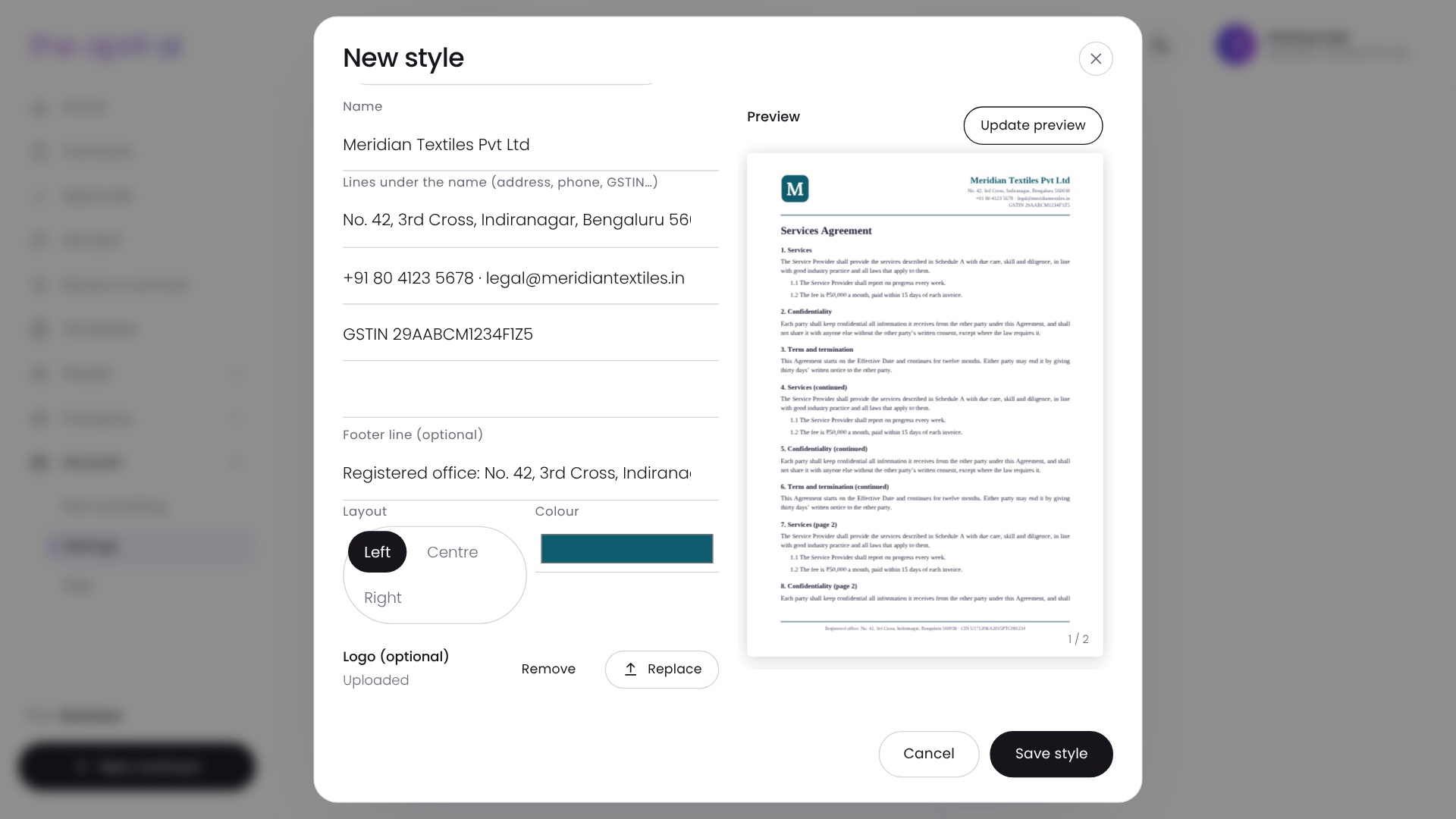
Your first style becomes the default for every new contract PDF. You can make more than one style, for example one per office or one without a letterhead, and choose Make default on the one most people should use. If your company has offices set up in April, each office can have its own default under Default for.
Step 2: Add your company seal
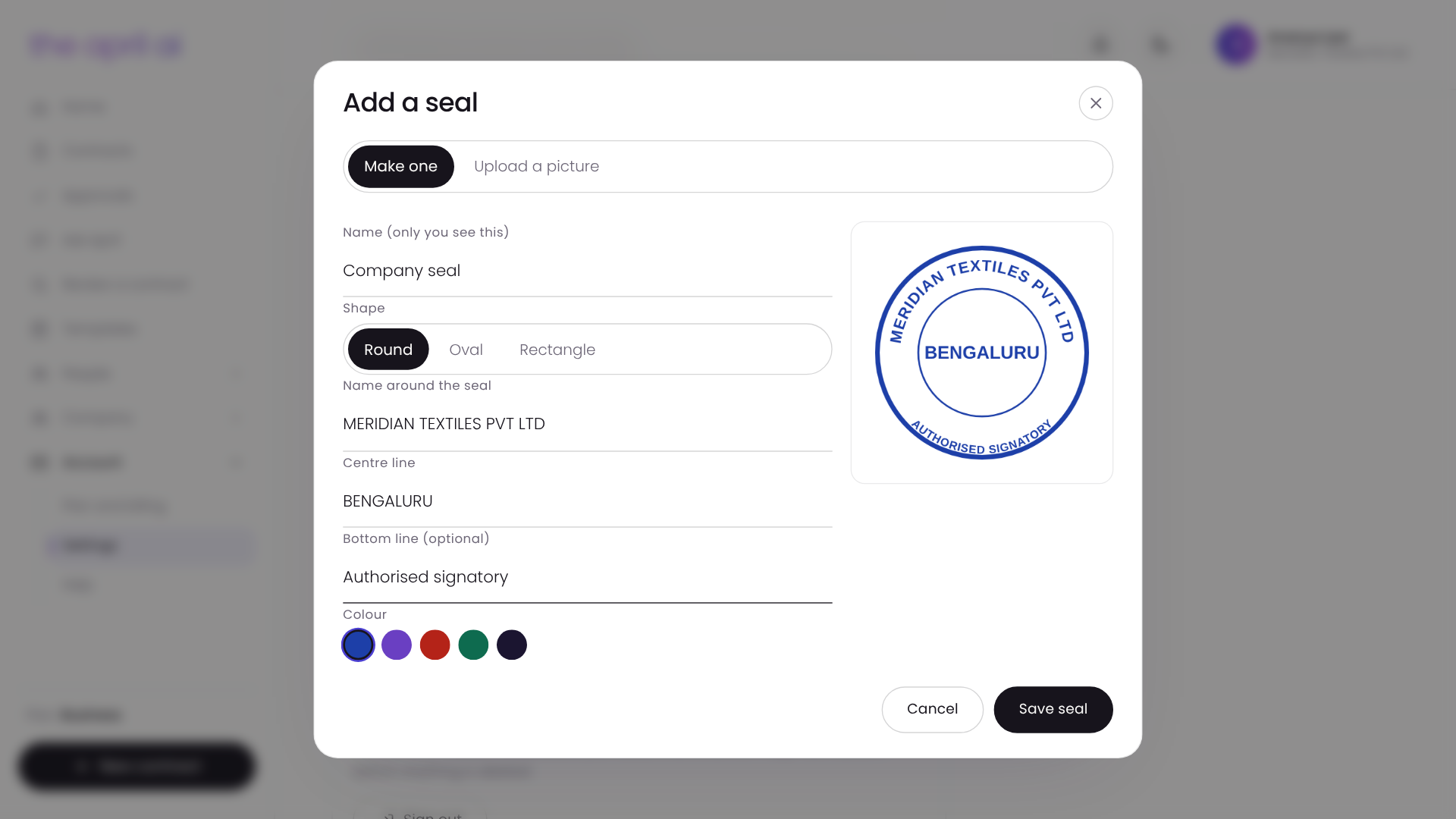
In Settings, find Seals and stamps and click Add a seal. There are two ways to add one.
Make a seal in April
Choose Make one, pick a shape (Round, Oval or Rectangle) and type:
• Name around the seal: usually the company's full name.
• Centre line: for example the city, or "Authorised signatory".
• Bottom line (optional): for example the registration number.
Give the seal a name and click Save seal.
Upload your rubber stamp
Choose Upload a picture. Stamp your seal on plain white paper and take a straight, well-lit photo, or use the image file your printer gave you (PNG or JPEG). Tick Make white paper see-through so the seal sits cleanly on the page, like a real stamp.
Who can use the seal: your company's seals can only be applied by your authorised signatories. If you haven't listed any signatories in April, the owners and admins can apply them. This keeps the seal from being used by anyone who simply has access to the account.
Step 3: Choose letterhead or plain paper for a contract
Open the contract. Next to Look on paper you'll see the style it uses and an On letterhead tick. Leave it ticked to send this contract on your letterhead, or untick it for plain paper with the same font and spacing. Click Look on paper to see the PDF exactly as it will be printed.
Step 4: Send it and mark where people sign
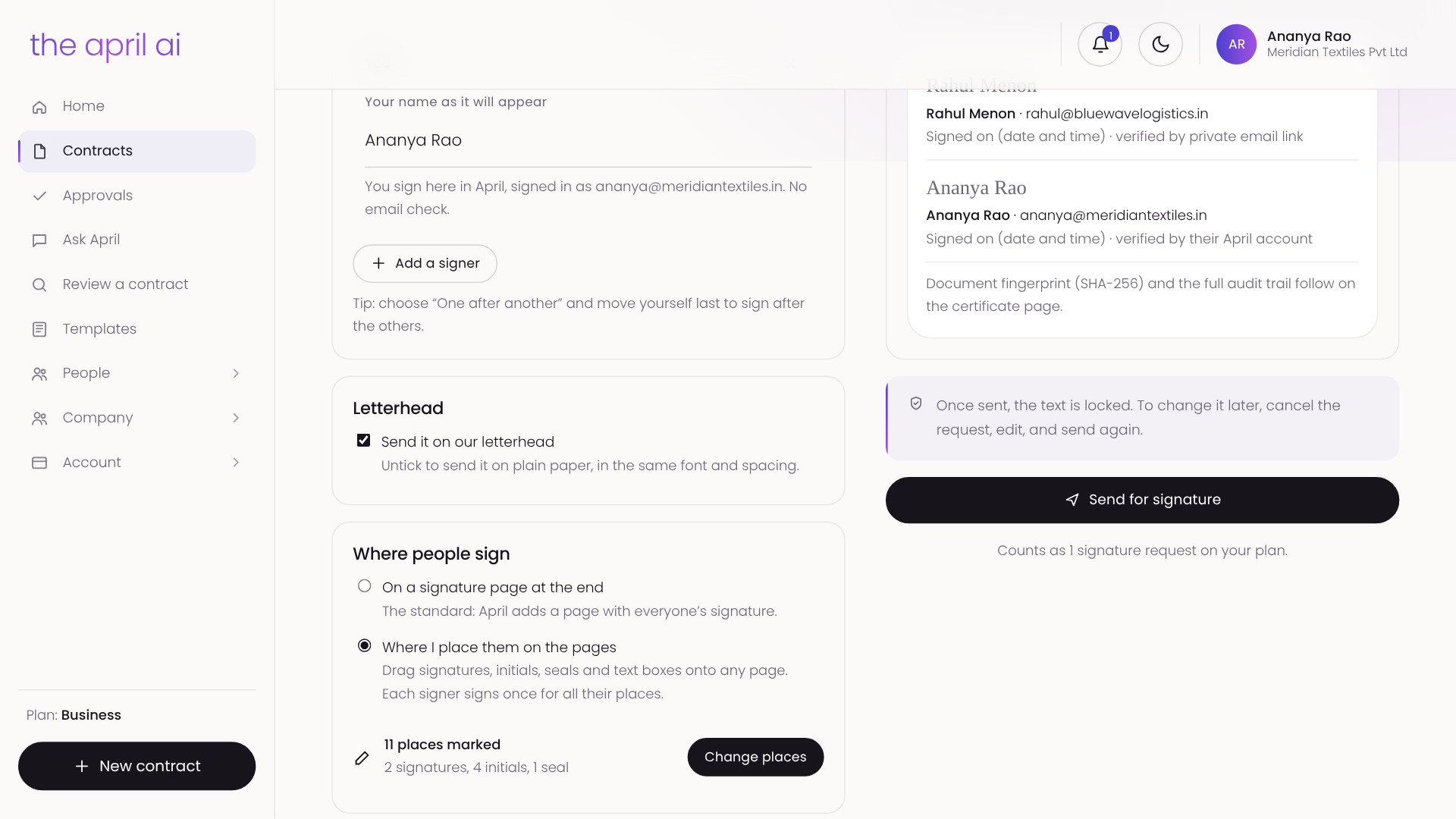
Click Send for signature and add the people who sign, in the order they should sign. If you sign too, click Add myself.
Under Where people sign, you have three choices:
• Where I place them on the pages: you mark the places yourself. This is the new option.
• On a signature page at the end: April adds a signature page after the last clause, now in your document style.
• On the uploaded PDF as it is: for a PDF you uploaded, keep your own pages exactly as they are and mark the places on them.
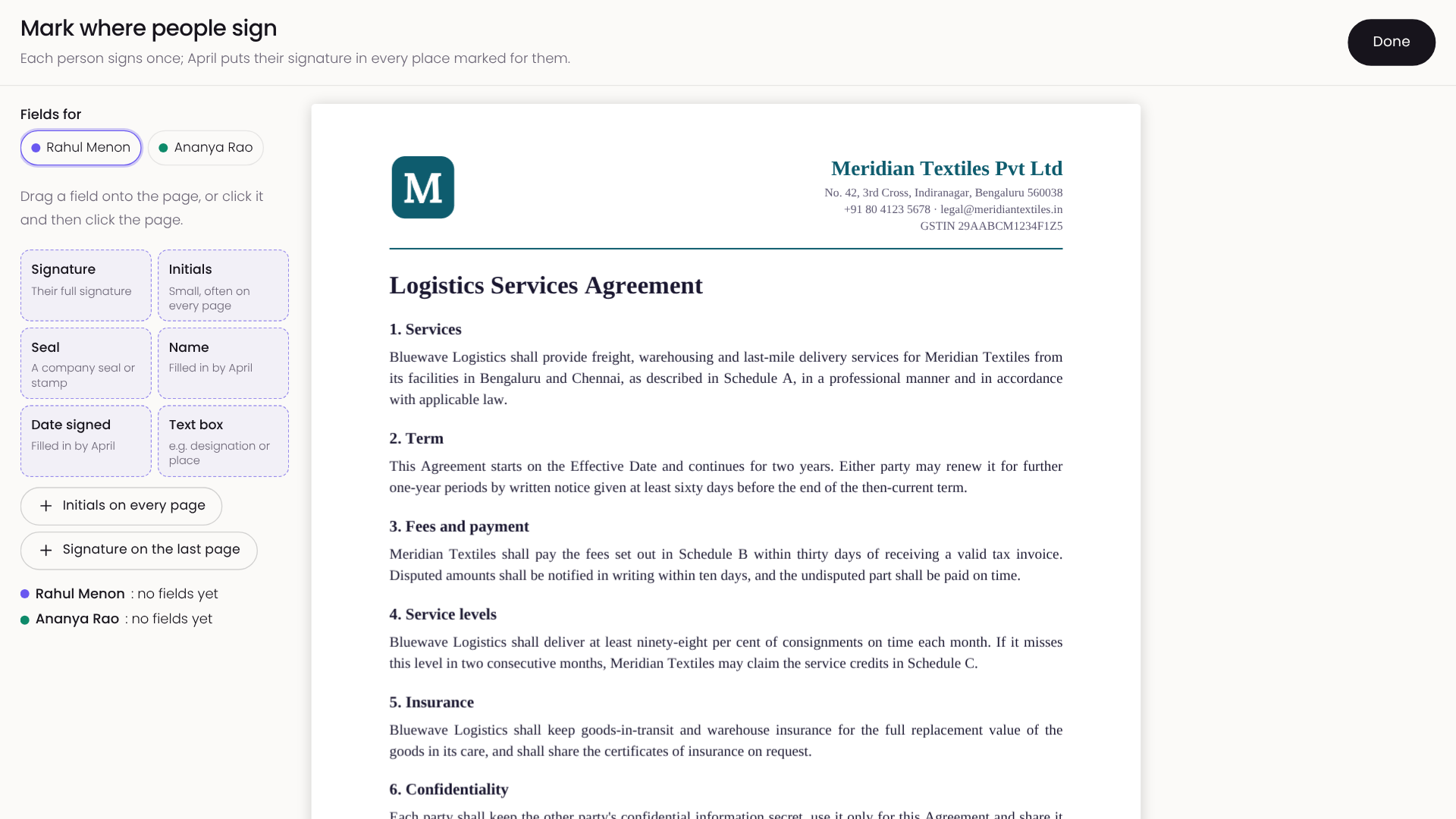
Choose Where I place them on the pages. The pages open exactly as they will be signed.
1. At the top, under Fields for, pick the person you're marking places for. Each person has their own colour.
2. Drag a field onto the page, or click it and then click the page:
- Signature: their full signature.
- Initials: small, often on every page.
- Seal: a company seal or stamp.
- Name and Date signed: filled in by April.
- Text box: something they write, such as their designation. Tick Must be filled in if they can't sign without it.
3. Use the two shortcuts for the usual layout: Initials on every page and Signature on the last page.
4. Move or resize any box. Copy to every page repeats a box on every page, and Remove deletes it. Clear all fields starts again.
5. Repeat for each person, then click Done and Send for signature.
Tip: check that initials sit in the margin and not on top of the text, especially on full pages. Drag them a little lower if they cover a line.
Step 5: How people sign
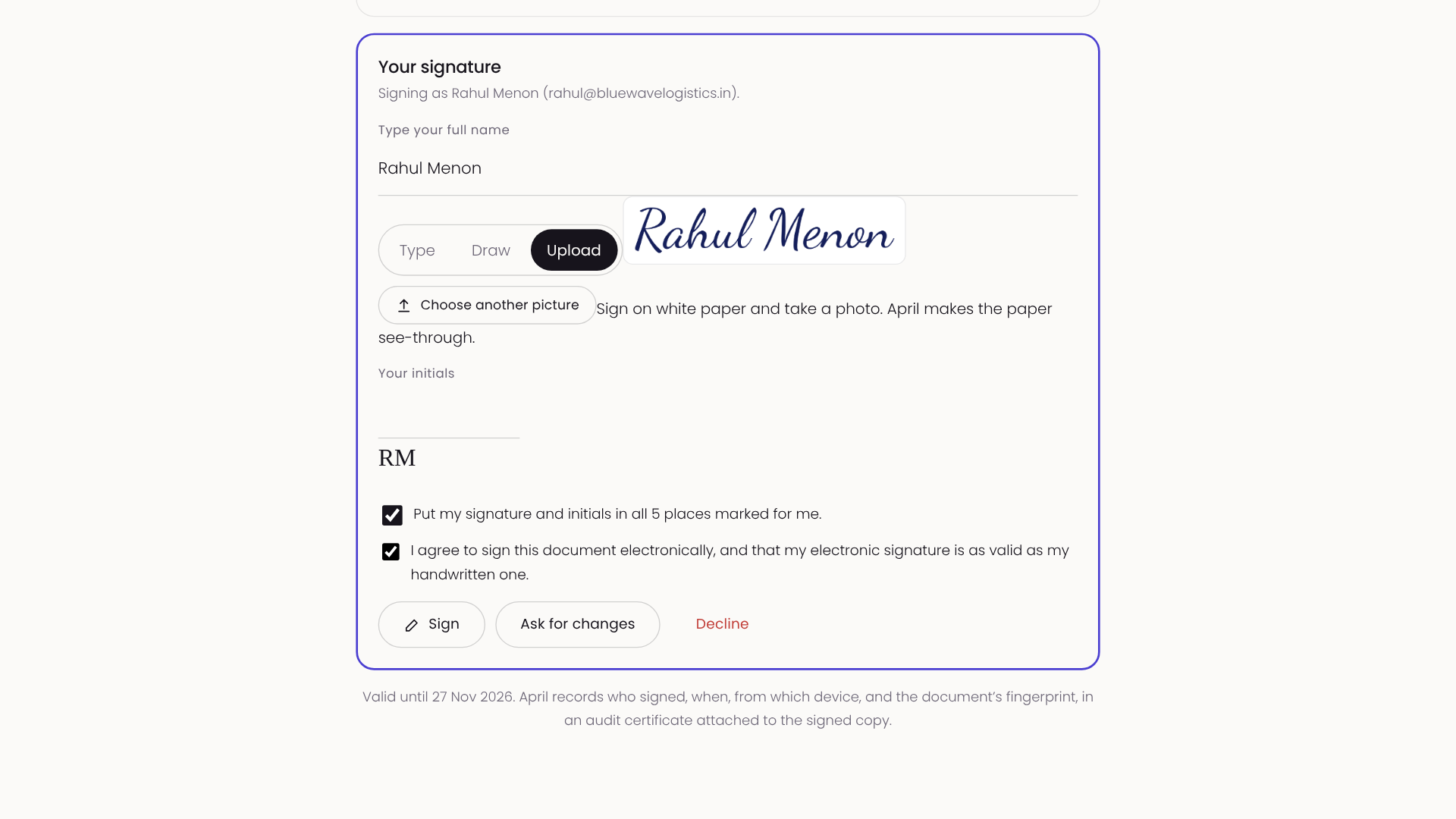
Each signer opens their private link. They don't need an April account. They read the contract and see every place marked for them.
They type, draw or upload their signature once, tick Put my signature and initials in all the places marked for me, and sign. If you marked a seal for them, your authorised signatory picks one of the company's seals, and someone from another company uploads a picture of their own seal.
Step 6: The signed copy
When everyone has signed, April makes the signed PDF. Your letterhead is on every page, and each signature, initial and seal sits where you placed it. At the end is an audit certificate recording who signed, when, how each person was verified and the document's SHA-256 fingerprint. Everyone who signed gets a copy, and anyone can check the file at [theaprilai.com/verify](/verify).
For law firms
Law firms set this up the same way, in Settings in the lawyer portal. Use your firm's letterhead on engagement letters, client agreements, notices and any contract you send for signature, and apply the firm's seal where it's needed.
Frequently asked questions
Do the other parties need an April account to sign?
No. Anyone you send a contract to can sign from their private link without an account, on a phone or a computer.
Can the other company use its own seal?
Yes. When you mark a seal place for someone outside your company, they upload a picture of their own seal while signing. Your company's seals can only be applied by your own authorised signatories.
I can't change the letterhead or seal settings. Why?
Only owners and admins can change them. Ask one of them to set up the style or seal, or to make you an admin.
Can I still use the standard signature page?
Yes. On a signature page at the end is still there, and it now uses your document style too.
Can I sign a PDF I uploaded, exactly as it is?
Yes. For an uploaded PDF, choose On the uploaded PDF as it is and mark the places on your own pages.
Will changing my letterhead change contracts already sent?
No. A contract keeps the letterhead and pages it was sent with. Changes apply to contracts you send afterwards.
Can different offices use different letterheads?
Yes. Make a style for each office and set it as the default for that office under Default for. Anyone can still pick another style for a single contract.
Ready to try it? Sign in at business.theaprilai.com, or at lawyer.theaprilai.com for law firms, and open Settings.